Sell a build-your-own holiday gift box with Kumi Bundle Builder
Kumi Commerce — Kumi Bundle Builder for Shopify
Last updated: 2026-11-23
Kumi Bundle Builder on the Shopify App Store · Questions and answers · What Kumi Bundle Builder cannot do
In a build-your-own gift box, a shopper picks a set number of items from a selection you choose, such as any 4 of 12, and pays a box price or gets a box discount. This guide sets one up for the December gift season. Theme screen names are from a Dawn-style theme; yours may differ.
What the shopper sees
The box has its own product page with the Bundle picker: item cards with an image, name, price, and minus and plus buttons (items with options get a drop-down). A counter reads, for example, "2 of 4 selected"; at the set number it says "Your bundle is complete." and Add bundle to cart turns on. Below the cards is an estimated bundle price next to the regular total.
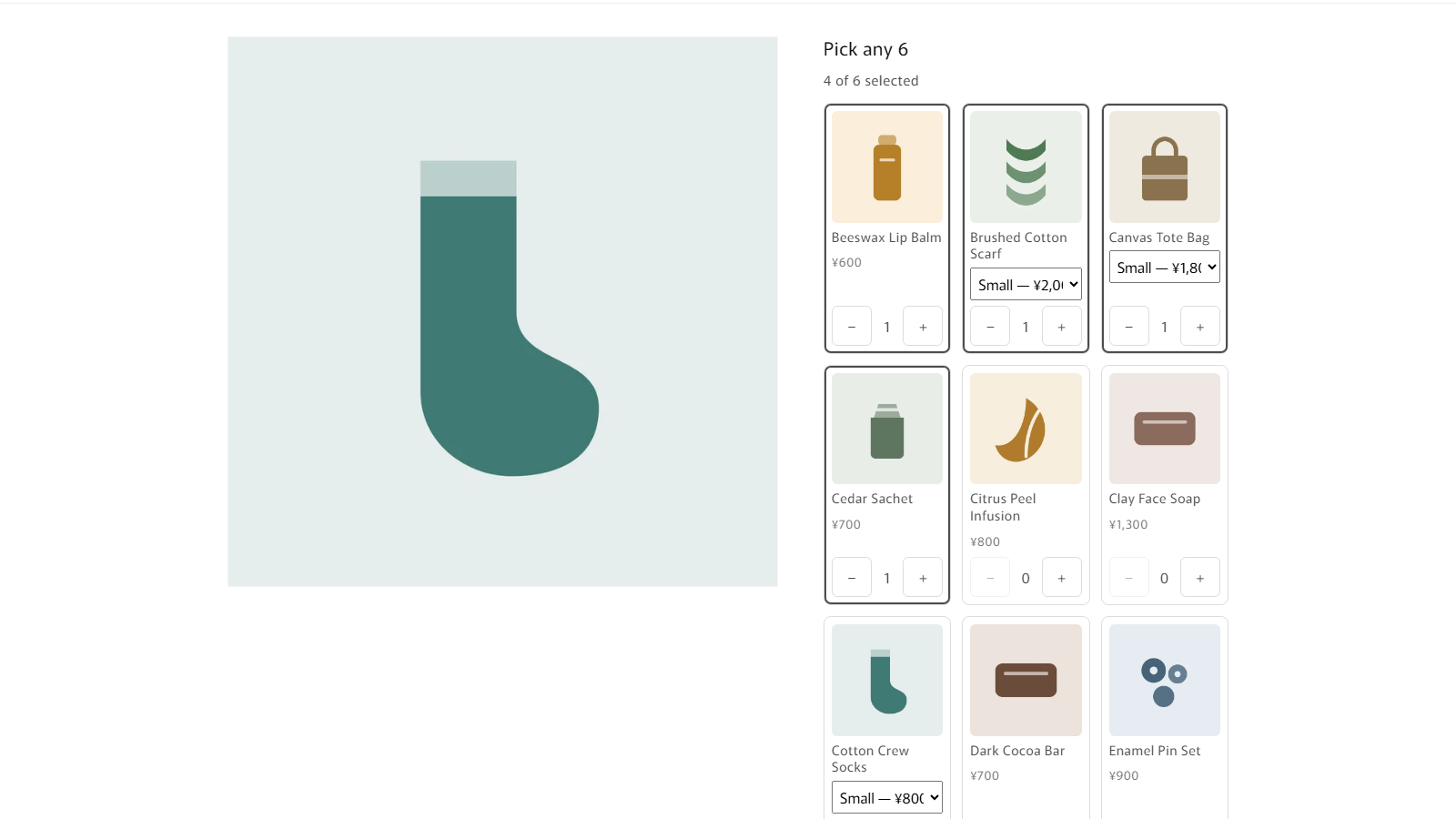
In the cart, the items become one line named after your bundle, at the box price, which Shopify works out on its servers. If the shopper changes the cart so the box is no longer complete, the discount is removed. A second box is built separately.
Before you start
- You need the Online Store channel and an Online Store 2.0 theme that supports app blocks, such as Dawn (the app's Bundles page warns you if yours can't hold the block).
- Match the number of items to the box you pack. The box price applies only when the shopper picks exactly that many.
- Offer more products than the box holds, with enough stock for the season. Products that are sold out, in draft, archived, unpublished or subscription-only can be added, but shoppers see "Sold out" or "Not available" and can't pick them. All your bundles together can offer roughly 250 products.
Step 1: Create the bundle in the app
- In the app, open Bundles and select Create bundle.
- Under Basics, enter the Name shoppers should see, such as "Holiday gift box"; the box's product page and the cart line use it. Enter an Identifier such as
holiday-box, and keep Enable this bundle on. - Under Contents, set Items to choose and use Select products to choose what shoppers can pick from.
- Under Discount, choose How to set the discount and enter your percentage or total (a new bundle starts at 15%).
- Select Save and sync.
Because Enable this bundle is on, saving creates the bundle's product (named after the bundle, product type "Bundle parent") and publishes it to your Online Store, which Shopify needs for bundle pricing. (Saving a bundle turned off doesn't create this product, and turning a bundle off later doesn't remove or unpublish the one it already has.) The app sets it so it can't be bought on its own; if Shopify refuses, the app tells you when you save (see the limits page). Don't unpublish or delete it, don't add it to collections, and exclude the product type "Bundle parent" from automated collections.
By percentage takes the same percentage off whatever is picked. By total price gives one box price, for example $40 for any 4; if the picked items add up to that total or less, no discount applies and each item is charged at its own price. Items can repeat, so keep your cheapest item (or option) times the number of items above the total. The result can be off by a rounding amount, and the total doesn't follow later price changes.
Step 2: Put the picker on the box's product page
The picker goes on the bundle's own product page, using a template with no buy button of its own. It's a theme block; the app doesn't change your theme code (Shopify's help on templates).
- In your Shopify admin, go to Online Store, then Themes, and select Customize (or Edit theme). In the template drop-down at the top, choose Products, then Create template. Enter a Name such as
gift-box, choose Default product under Based on, and select Create template. - In the new template's Product information section, remove or hide the Price, Variant picker, Quantity selector and Buy buttons blocks, plus any Bundle picker or Quantity breaks block copied from Default product.
- Select Add block, open the Apps tab and choose Bundle picker. Set Bundle identifier to
holiday-box, and drag the block below the title if it lands above it. If the preview shows another product, such as a gift card, pick the bundle's product with the preview switcher at the top of the sidebar. Select Save. - In Products, open the bundle's product (product type "Bundle parent"). Under Theme templates, set Theme template to
gift-box, and save.
Always fill in Bundle identifier: an empty one shows your first bundle, which can change later. You could set Heading (optional) to something like "Choose any 4", since the page title is already the bundle name. Show prices is on by default. The app's Open theme editor button may open your default product template with a Bundle picker already added; don't save it there.
The template only changes the product page. The bundle's product still appears in store search, predictive search and pages that list all products, such as /collections/all, at its nominal price of 1 (for example $1.00). Shoppers who open it land on the picker page and can't buy it on its own.
Step 3: Test it, then link to it
- On the box's product page, build a test box and select Add bundle to cart. The picker says "Added to your cart." with a View cart link; the header cart icon may not update right away. The cart should show one line with the bundle's name at the box price.
- Open Status in the app. It checks that a Bundle picker for each identifier is on your published theme and that every product in your bundles can be purchased, but not which product uses the template, so also open the page yourself.
- If you run holiday automatic discounts or discount codes, place a test order and check the amount charged.
- Orders and packing slips list each chosen item on its own line (grouped in the order under the bundle name). The discount is in the line prices, so the order's discount total stays at 0.
- If every item shows "Sold out" or "This bundle is not available right now." while testing, check that your store sells to the country you're browsing from.
- Then link to the page from your menu or a banner. Keep it out of collections.
After the season
A bundle has no start or end date. To stop selling, turn Enable this bundle off and select Save and sync: the discount stops and the picker disappears. Then set the product back to the default template and remove your menu link. The theme editor can't delete a template (that needs Edit code); leaving it unassigned is fine. If you won't reuse the box, select Delete this bundle instead (its product is unpublished but kept for past orders).
What this can't do
- No gift wrap or gift messages. With standard Shopify, sell gift wrapping as a separate product, and if your theme has a cart note setting, shoppers can write a message there (saved with the order, one note per order).
- No mystery boxes. Shoppers choose every item. For a surprise box, list a regular product with its own price and stock.
- No per-customer limit or cap on boxes sold. Only the items' stock limits sales.
- No "one of each" rule, and no two options of one product in the same box. Changing an item's option clears that item's picks.
- No "buy 2 boxes, save more". Quantity breaks from this app never apply to bundles.
- Other discounts stack. The box price is written onto the cart line, not applied as a Shopify discount, so discounts on all items in the cart, order-level discounts, discount codes and discounts that target the bundle's product apply on top.
- Other currencies and markets. A total-price box is converted at the exchange rate and applied as a percentage, so the price isn't round, and the picker may show only the regular total. With per-market price lists, the cheapest-box check may not hold. See Does it work with multiple currencies?
- No shipping settings for the box. No SKU or shipping profile of its own; stock follows the items, and you can't choose the fulfilling location.
- No exchanges, bulk editing, bundles inside bundles, subscriptions, pre-orders, try-before-you-buy or Google & YouTube channel.
- Theme limits. product.liquid themes can't hold the picker; stores with checkout.liquid customizations are out of scope.
See the full list on What Kumi Bundle Builder cannot do, the questions and answers, or email [email protected] in English or Japanese.